> ## Documentation Index
> Fetch the complete documentation index at: https://help.peerlist.io/llms.txt
> Use this file to discover all available pages before exploring further.
# Workplace Verification
> How to verify workplace on Peerlist?
export const PEERLIST_EXTERNAL_LINKS = {
addProject: 'https://peerlist.io/user/projects/add-project',
addExperience: 'https://peerlist.io/user/resume/add-experience',
addEducation: 'https://peerlist.io/user/resume/add-education',
addCertification: 'https://peerlist.io/user/resume/add-certification',
addVolunteerWork: 'https://peerlist.io/user/resume/add-volunteer-work',
addCohort: 'https://peerlist.io/user/resume/add-cohort',
signup: 'https://peerlist.io/signup',
customDomain: 'https://peerlist.io/user/settings/custom-domain',
verification: 'https://peerlist.io/user/settings/verification',
projects: 'https://peerlist.io/projects',
launchpad: 'https://peerlist.io/launchpad',
account: "https://peerlist.io/user/settings/account"
};
export const SUPPORT_EMAIL = "support@peerlist.io";
export const NO_REPLY_EMAIL = "no-reply@peerlist.io";
You can verify your **current** workplace by providing your work email associated with the company/organization.
Before you continue, please note;
* You can verify only the current workplace.
* You need to have work email associated with the company.
* Student email id cannot be used to verify workplace except faculty.
* Verification through documents such as offer letter, salary slips, or any other misc document cannot be used for workplace verification.
If your company has a profile on Peerlist, the admin can verify your association with it. This also allows your past workplaces to be verified.
## Steps to verify your workplace on Peerlist
Open the drawer menu by clicking on your profile picture at top-right corner and click on Verification. Here’s a direct link link to open this modal, make sure you’re logged in — {PEERLIST_EXTERNAL_LINKS.verification}
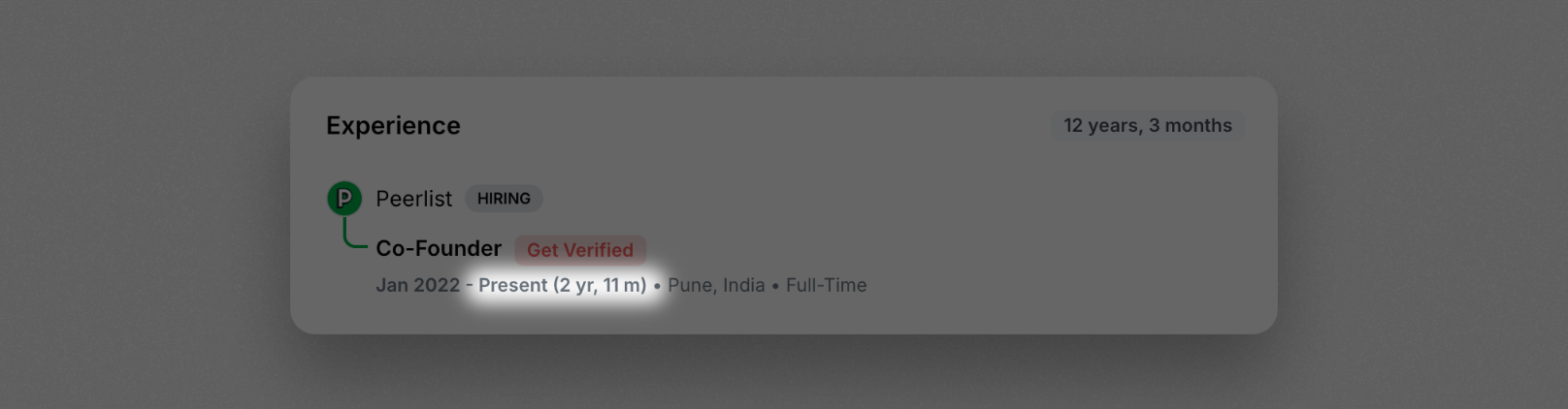
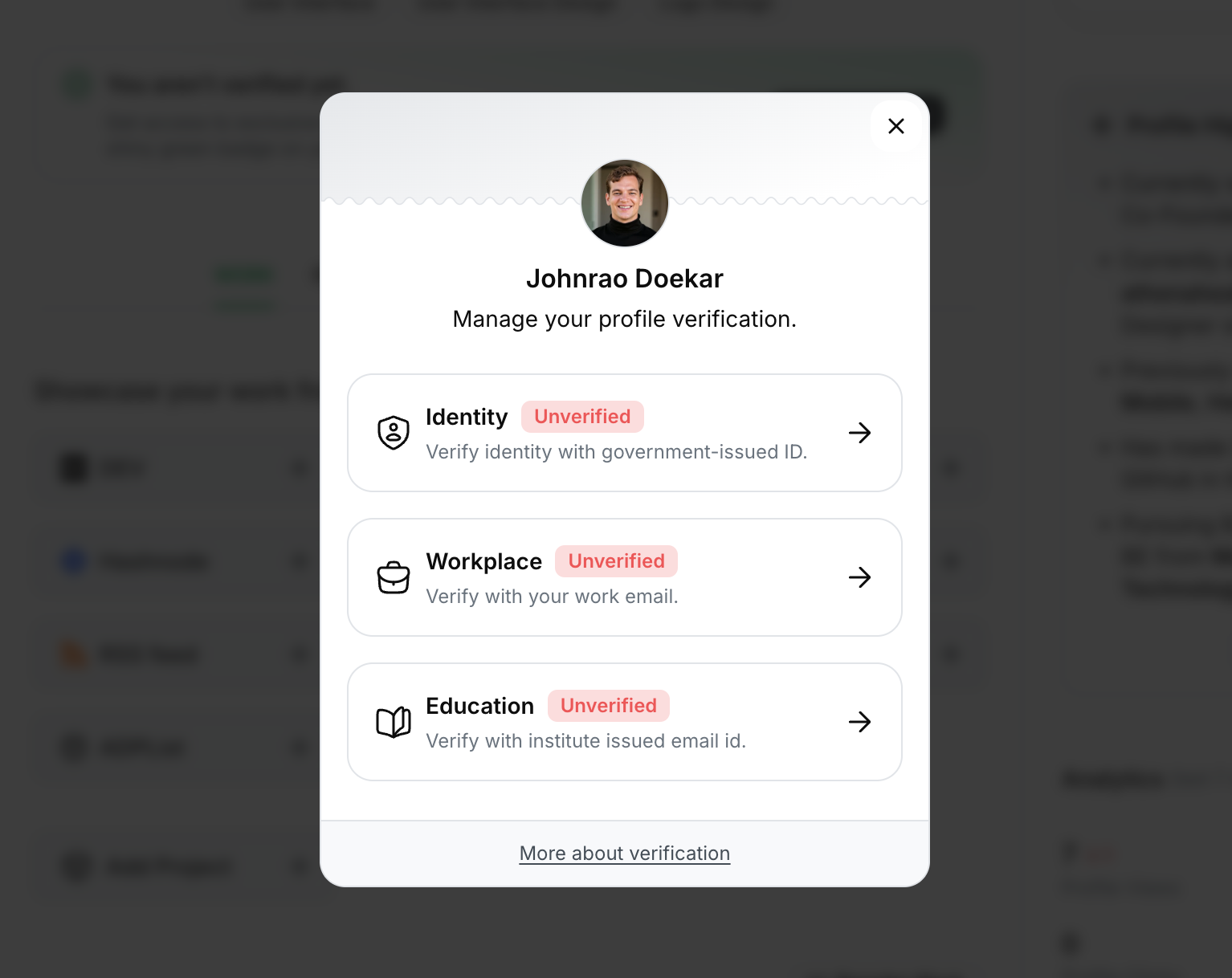 If you don’t see this option, that means: There is no present workplace added on your resume tab. Refer the screenshot below.
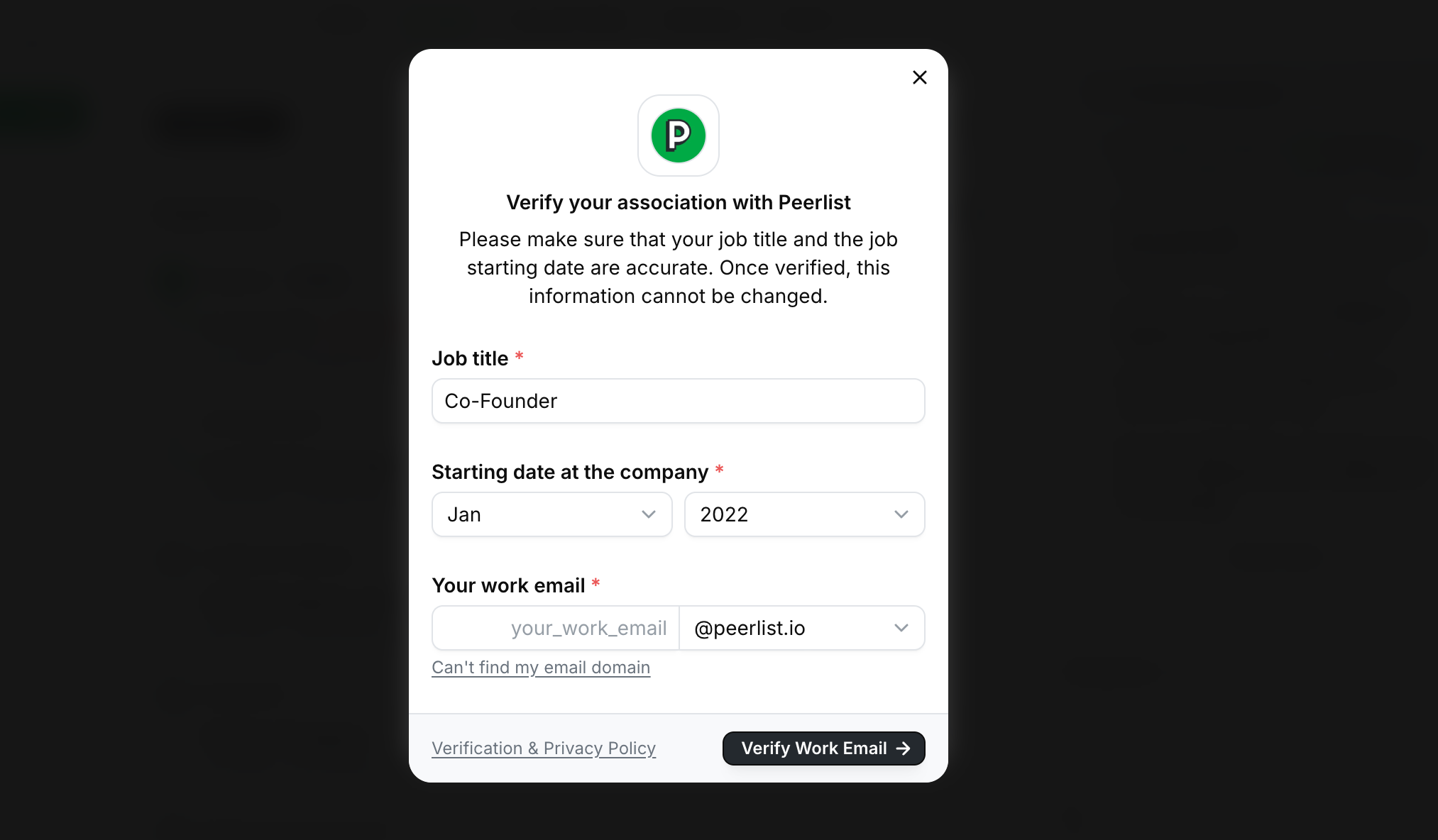
 Fill out or recheck all the information along with your work email prefix. You can select the correct email domain from the dropdown. Click Verify Work Email.
 A verification code will be sent to your work email. Enter the code and you will be verified 🎉.
***
In case you don’t see your email domain in the dropdown. Follow these steps:
1. Click on Can’t find my email domain.
A verification code will be sent to your work email. Enter the code and you will be verified 🎉.
***
In case you don’t see your email domain in the dropdown. Follow these steps:
1. Click on Can’t find my email domain.
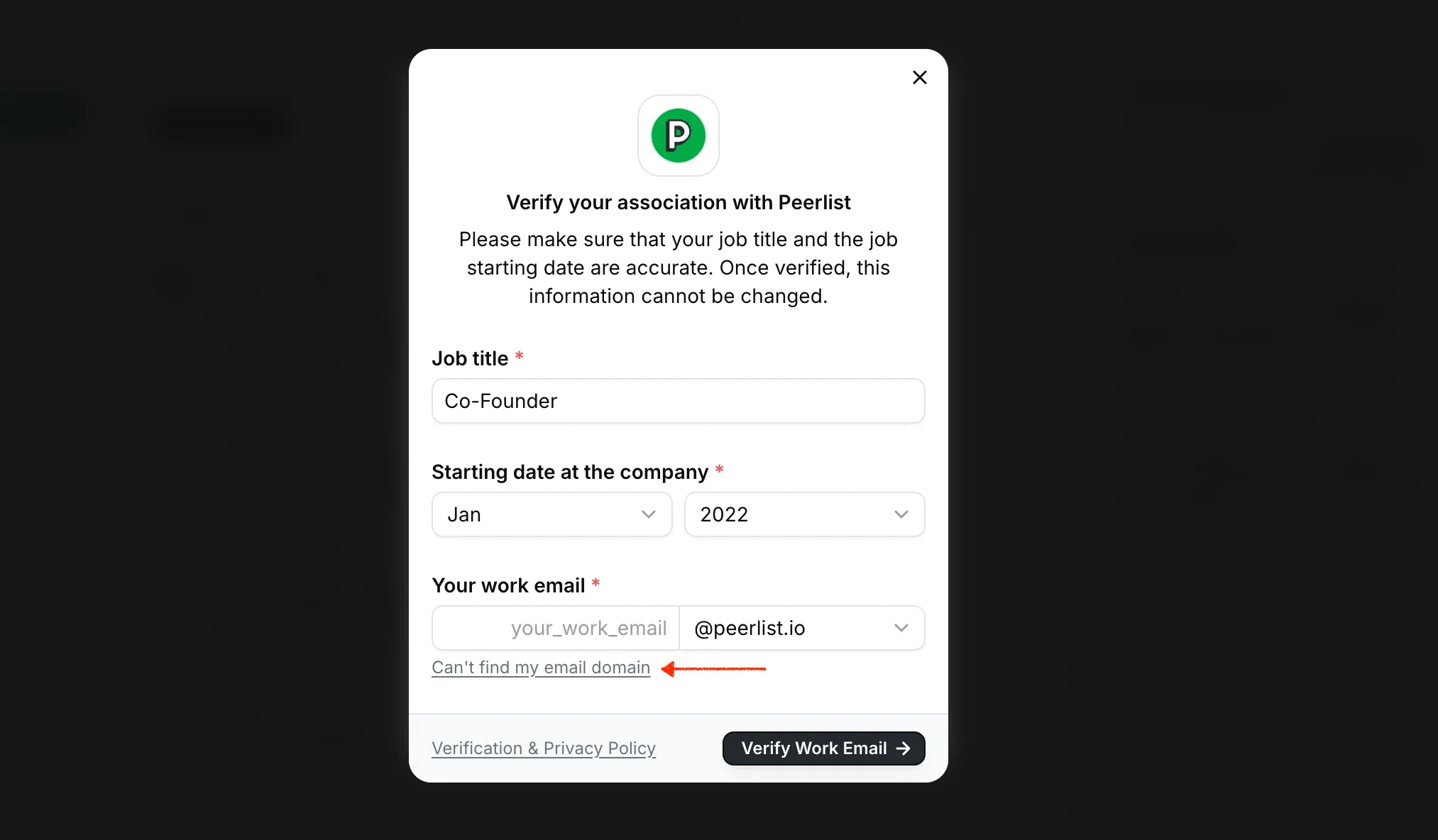 2. Enter your full work email and click on **Verify Work Email.**
3. A verification code will be sent to your student email. Enter the code and submit your verification request.
4. Once submitted, you will receive an update via email in 24-48 hours whether your verification request got approved or rejected.
***
## Possible errors while verifying workplace
It's possible that you may have created another account using your work email. Please log in to that account and delete it before proceeding with your verification.
* Some companies use firewall which blocks receiving emails from outside. In such case, try adding {NO_REPLY_EMAIL} to your contact and resend verification code.
* Check your spam folder.
* If the issue still persist, please contact {SUPPORT_EMAIL}
2. Enter your full work email and click on **Verify Work Email.**
3. A verification code will be sent to your student email. Enter the code and submit your verification request.
4. Once submitted, you will receive an update via email in 24-48 hours whether your verification request got approved or rejected.
***
## Possible errors while verifying workplace
It's possible that you may have created another account using your work email. Please log in to that account and delete it before proceeding with your verification.
* Some companies use firewall which blocks receiving emails from outside. In such case, try adding {NO_REPLY_EMAIL} to your contact and resend verification code.
* Check your spam folder.
* If the issue still persist, please contact {SUPPORT_EMAIL}