> ## Documentation Index
> Fetch the complete documentation index at: https://help.peerlist.io/llms.txt
> Use this file to discover all available pages before exploring further.
# Education Verification
> How to get your educational institute verified on Peerlist?
export const PEERLIST_EXTERNAL_LINKS = {
addProject: 'https://peerlist.io/user/projects/add-project',
addExperience: 'https://peerlist.io/user/resume/add-experience',
addEducation: 'https://peerlist.io/user/resume/add-education',
addCertification: 'https://peerlist.io/user/resume/add-certification',
addVolunteerWork: 'https://peerlist.io/user/resume/add-volunteer-work',
addCohort: 'https://peerlist.io/user/resume/add-cohort',
signup: 'https://peerlist.io/signup',
customDomain: 'https://peerlist.io/user/settings/custom-domain',
verification: 'https://peerlist.io/user/settings/verification',
projects: 'https://peerlist.io/projects',
launchpad: 'https://peerlist.io/launchpad',
account: "https://peerlist.io/user/settings/account"
};
export const SUPPORT_EMAIL = "support@peerlist.io";
You can verify your educational institution by providing your **student email address** for your current education and confirming it through the verification code sent to that email.
Before you continue, please note;
* You can verify only the educational institution you are currently enrolled in.
* Education verification is available only for institutions that provide student email id.
* Institute issued email id cannot be used to verify workplace except faculty.
* Verification through documents such as student ID cards, bonafide certificates, or degree certificates is not supported.
## Steps to verify your educational institution
Open the drawer menu by clicking on your profile picture at top-right corner and click on Verification. Here’s a direct link link to open this modal, make sure you’re logged in — {PEERLIST_EXTERNAL_LINKS.verification}
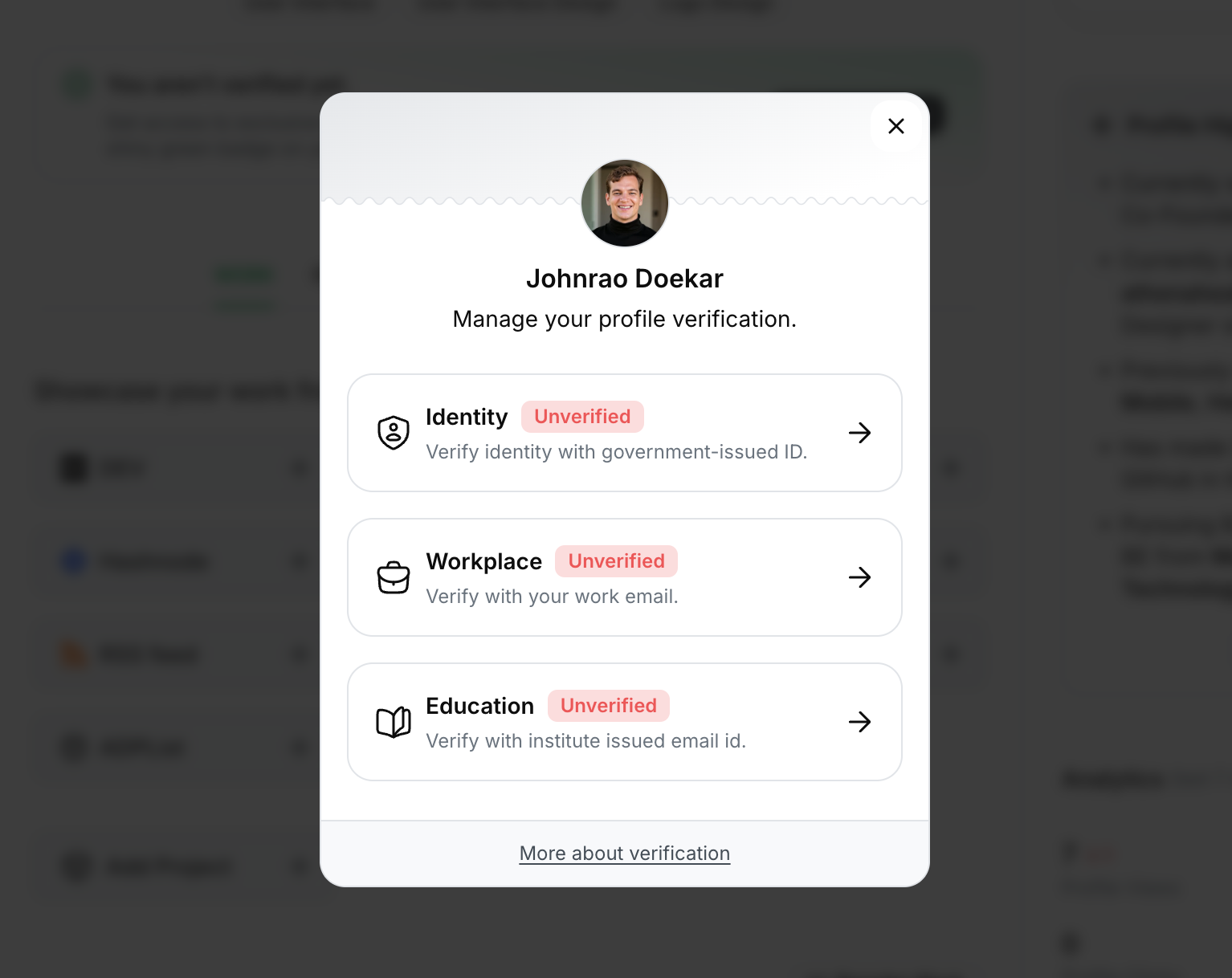 Click on **Education** option — If you don’t see this option, that means: There is no current education added on your resume tab.
Fill out all the necessary information along with your student email issued by your educational institute. Click **Next**.
Click on **Education** option — If you don’t see this option, that means: There is no current education added on your resume tab.
Fill out all the necessary information along with your student email issued by your educational institute. Click **Next**.
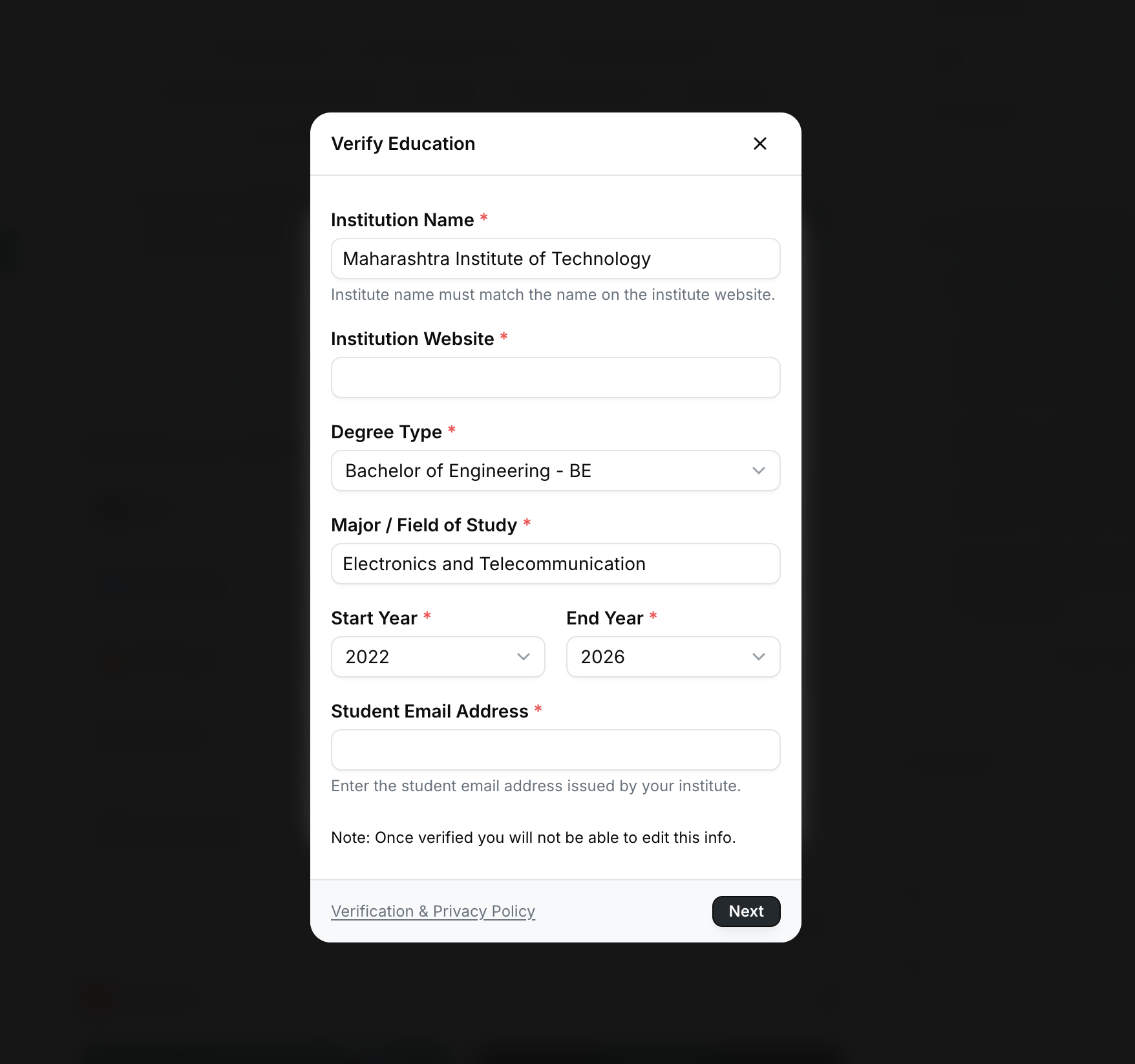 Please note:
* Your institute name should match with the name mentioned on institute website.
* Your institute website and email domain should match. In case of exception, you can reach out to {SUPPORT_EMAIL} if your request gets rejected.
A verification code will be sent to your student email. Enter the code and submit your verification request
Once submitted, you will receive an update via email whether your verification request got accepted or rejected.
Once verified, this information cannot be changed, updated, or edited. You will only have the option to delete it.
Please note:
* Your institute name should match with the name mentioned on institute website.
* Your institute website and email domain should match. In case of exception, you can reach out to {SUPPORT_EMAIL} if your request gets rejected.
A verification code will be sent to your student email. Enter the code and submit your verification request
Once submitted, you will receive an update via email whether your verification request got accepted or rejected.
Once verified, this information cannot be changed, updated, or edited. You will only have the option to delete it.