> ## Documentation Index
> Fetch the complete documentation index at: https://help.peerlist.io/llms.txt
> Use this file to discover all available pages before exploring further.
# Resume
> How to add work experience, education, bootcamp, certification, and volunteering experience on your peerlist profile.
export const PEERLIST_EXTERNAL_LINKS = {
addProject: 'https://peerlist.io/user/projects/add-project',
addExperience: 'https://peerlist.io/user/resume/add-experience',
addEducation: 'https://peerlist.io/user/resume/add-education',
addCertification: 'https://peerlist.io/user/resume/add-certification',
addVolunteerWork: 'https://peerlist.io/user/resume/add-volunteer-work',
addCohort: 'https://peerlist.io/user/resume/add-cohort',
signup: 'https://peerlist.io/signup',
customDomain: 'https://peerlist.io/user/settings/custom-domain',
verification: 'https://peerlist.io/user/settings/verification',
projects: 'https://peerlist.io/projects',
launchpad: 'https://peerlist.io/launchpad',
account: "https://peerlist.io/user/settings/account"
};
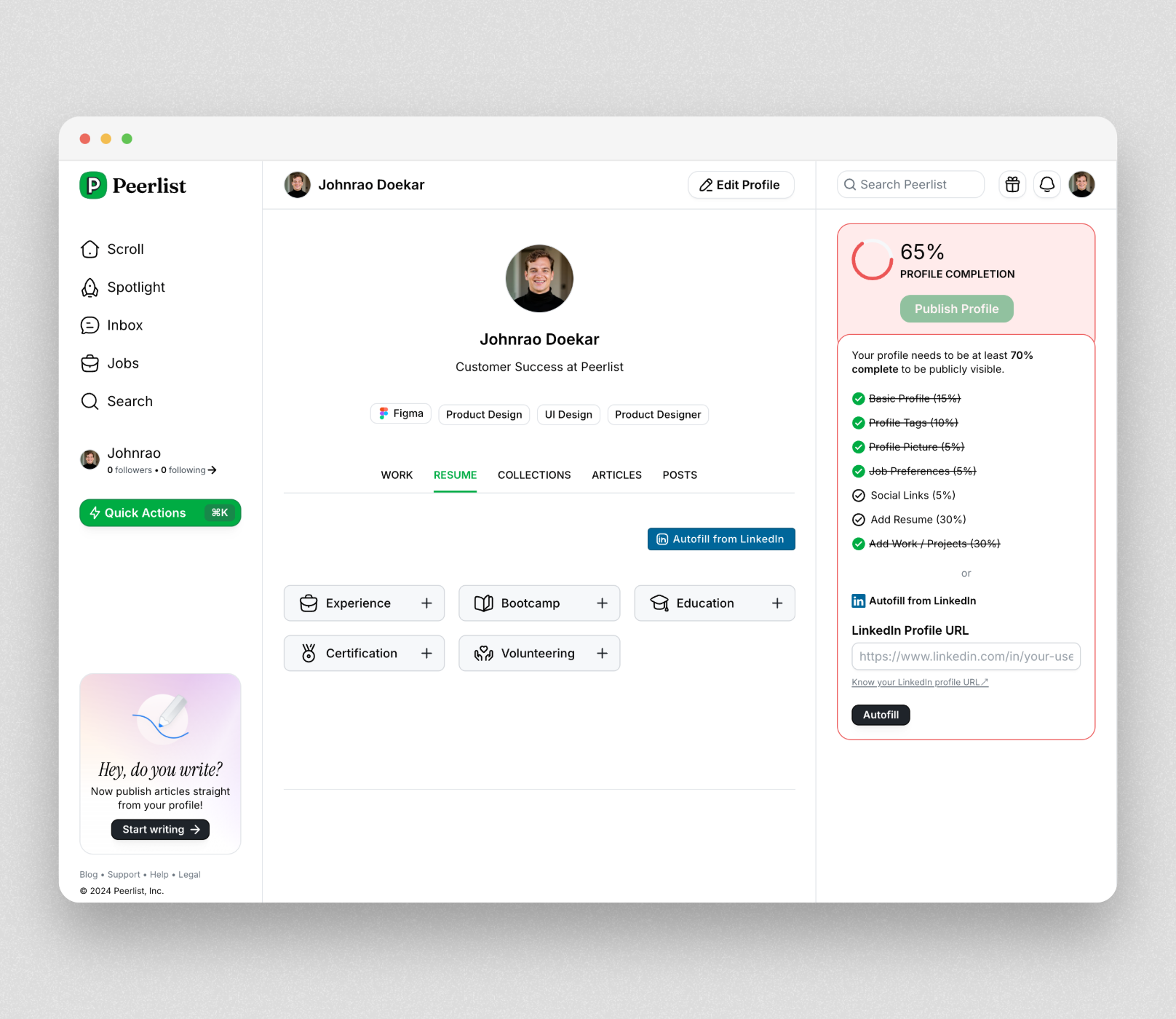 ## Autofill with LinkedIn
You can autofill resume sections by importing data from your LinkedIn profile. You just need to provide your profile link.
## Autofill with LinkedIn
You can autofill resume sections by importing data from your LinkedIn profile. You just need to provide your profile link.
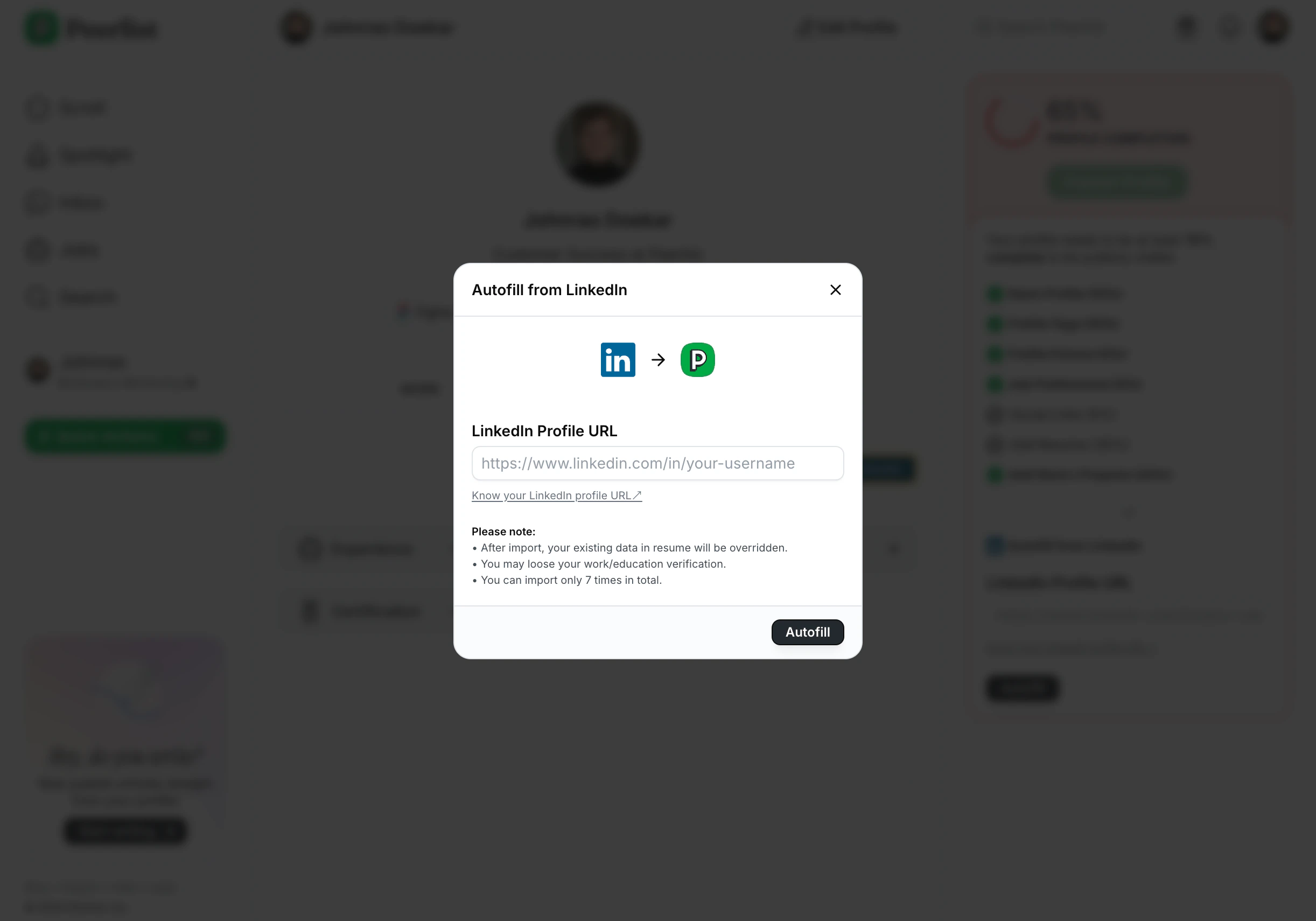 Enter your LinkedIn profile URL and click on Autofill. We will automatically import all of your resume data and autofill resume section on your Peerlist profile.
Please note that:
* We can autofill only if your LinkedIn profile is publicly available.
* You can use Autofill with LinkedIn only 3 times.
* This is a one-time import. That means it does not sync your LinkedIn profile and Peerlist profile and won’t automatically update the information in future.
* We try our best to get the most updated information from your Peerlist profile. But do cross-check the imported data is correct. If not; make the appropriate correction manually.
Avoid using Autofill with LinkedIn if you have already added/filled resume sections. because, it override the existing data and you might loose your verifications.
***
## Add Work Experience
Enter your LinkedIn profile URL and click on Autofill. We will automatically import all of your resume data and autofill resume section on your Peerlist profile.
Please note that:
* We can autofill only if your LinkedIn profile is publicly available.
* You can use Autofill with LinkedIn only 3 times.
* This is a one-time import. That means it does not sync your LinkedIn profile and Peerlist profile and won’t automatically update the information in future.
* We try our best to get the most updated information from your Peerlist profile. But do cross-check the imported data is correct. If not; make the appropriate correction manually.
Avoid using Autofill with LinkedIn if you have already added/filled resume sections. because, it override the existing data and you might loose your verifications.
***
## Add Work Experience
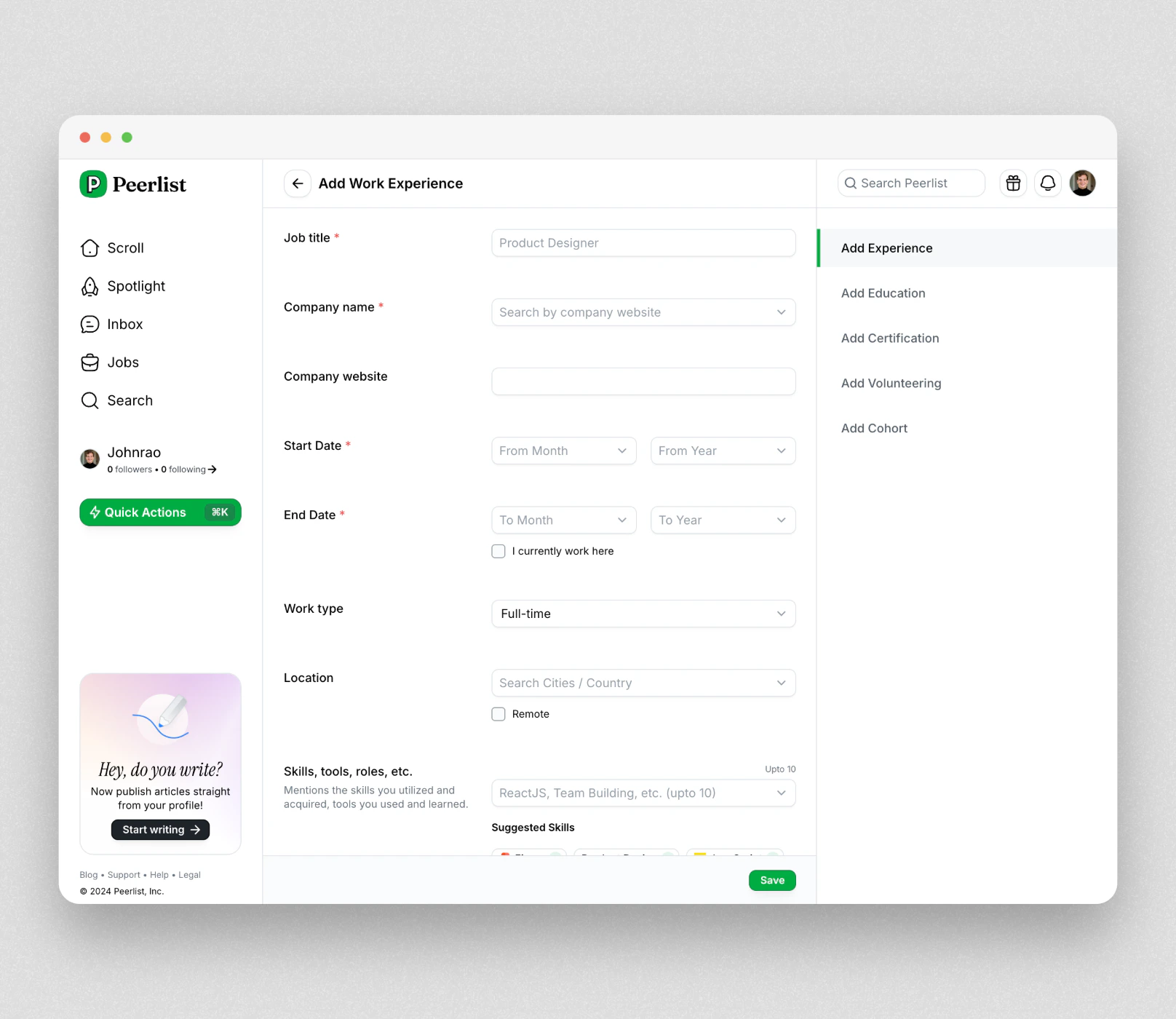 1. Click on Experience button on resume tab or go to {PEERLIST_EXTERNAL_LINKS.addExperience}
2. It will open Add Experience form.
3. Fill in all the information. You can search your company by it’s website URL.
4. Click on Save.
## Add Education
1. Click on Experience button on resume tab or go to {PEERLIST_EXTERNAL_LINKS.addExperience}
2. It will open Add Experience form.
3. Fill in all the information. You can search your company by it’s website URL.
4. Click on Save.
## Add Education
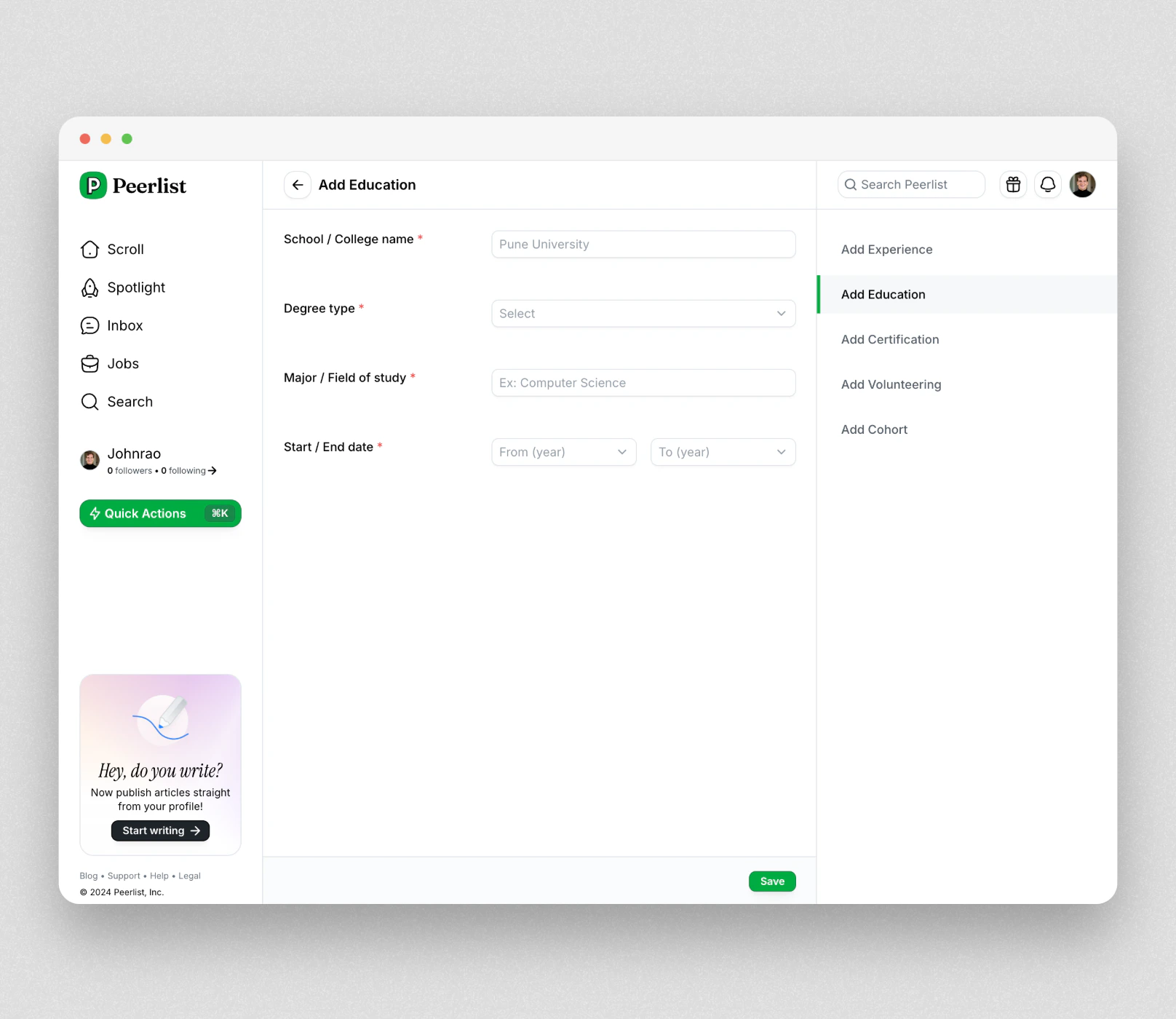 1. Click on Education button on resume tab or go to {PEERLIST_EXTERNAL_LINKS.addEducation}
2. It will open Add Education form.
3. Fill in all the information.
4. Click on Save.
## Add Certification
1. Click on Certification button on resume tab or go to {PEERLIST_EXTERNAL_LINKS.addCertification}
2. It will open Add Certification form.
3. Fill in all the information.
4. Click on Save.
## Add Volunteering
1. Click on Volunteering button on resume tab or go to {PEERLIST_EXTERNAL_LINKS.addVolunteerWork}
2. It will open Add Volunteering form.
3. Fill in all the information.
4. Click on Save.
## Add Bootcamp
1. Click on Bootcamp button on resume tab or go to {PEERLIST_EXTERNAL_LINKS.addCohort}
2. It will open Add Volunteering form.
3. Fill in all the information.
4. Click on Save.
1. Click on Education button on resume tab or go to {PEERLIST_EXTERNAL_LINKS.addEducation}
2. It will open Add Education form.
3. Fill in all the information.
4. Click on Save.
## Add Certification
1. Click on Certification button on resume tab or go to {PEERLIST_EXTERNAL_LINKS.addCertification}
2. It will open Add Certification form.
3. Fill in all the information.
4. Click on Save.
## Add Volunteering
1. Click on Volunteering button on resume tab or go to {PEERLIST_EXTERNAL_LINKS.addVolunteerWork}
2. It will open Add Volunteering form.
3. Fill in all the information.
4. Click on Save.
## Add Bootcamp
1. Click on Bootcamp button on resume tab or go to {PEERLIST_EXTERNAL_LINKS.addCohort}
2. It will open Add Volunteering form.
3. Fill in all the information.
4. Click on Save.