> ## Documentation Index
> Fetch the complete documentation index at: https://help.peerlist.io/llms.txt
> Use this file to discover all available pages before exploring further.
# How to showcase my work on my Peerlist profile?
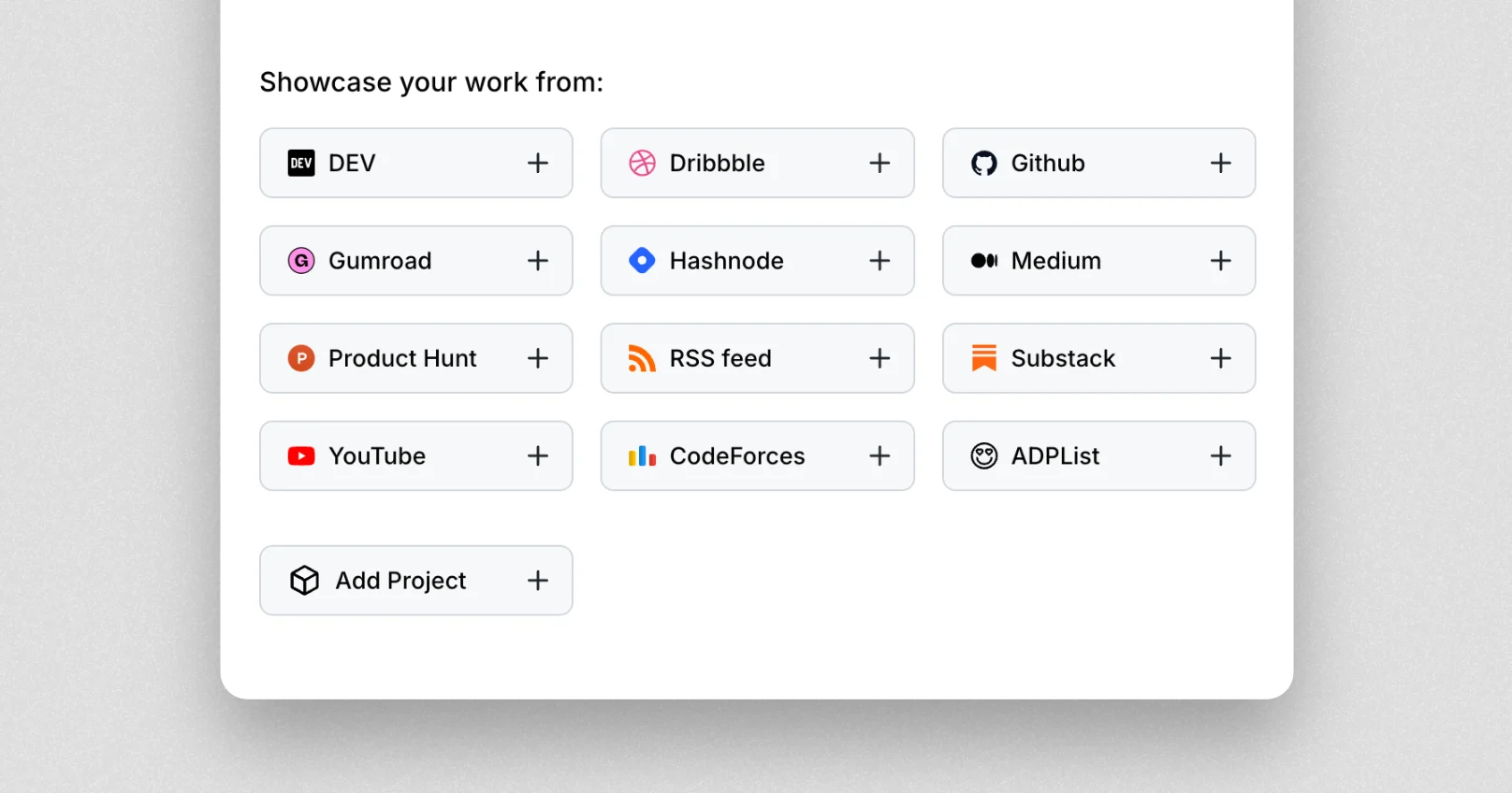
> Peerlist offers multiple integrations with platforms like GitHub, Dribbble, Medium, Substack, and more to showcase your work.
 ## GitHub
Click on the GitHub button and authenticate with your GitHub credentials to start showing your repositories and contribution graph on your Peerlist profile.
## Dribbble
Click on the Dribbble button and authenticate with your Dribbble credentials to start showing your latest design shots on your Peerlist profile.
## Product Hunt
Click on the Product Hunt button and authenticate with your Product Hunt credentials to start showing your latest products launched on your Peerlist profile.
## Gumroad
Click on the Gumroad button and authenticate with your Gumroad credentials to start showing your latest digital products on your Peerlist profile.
## Medium
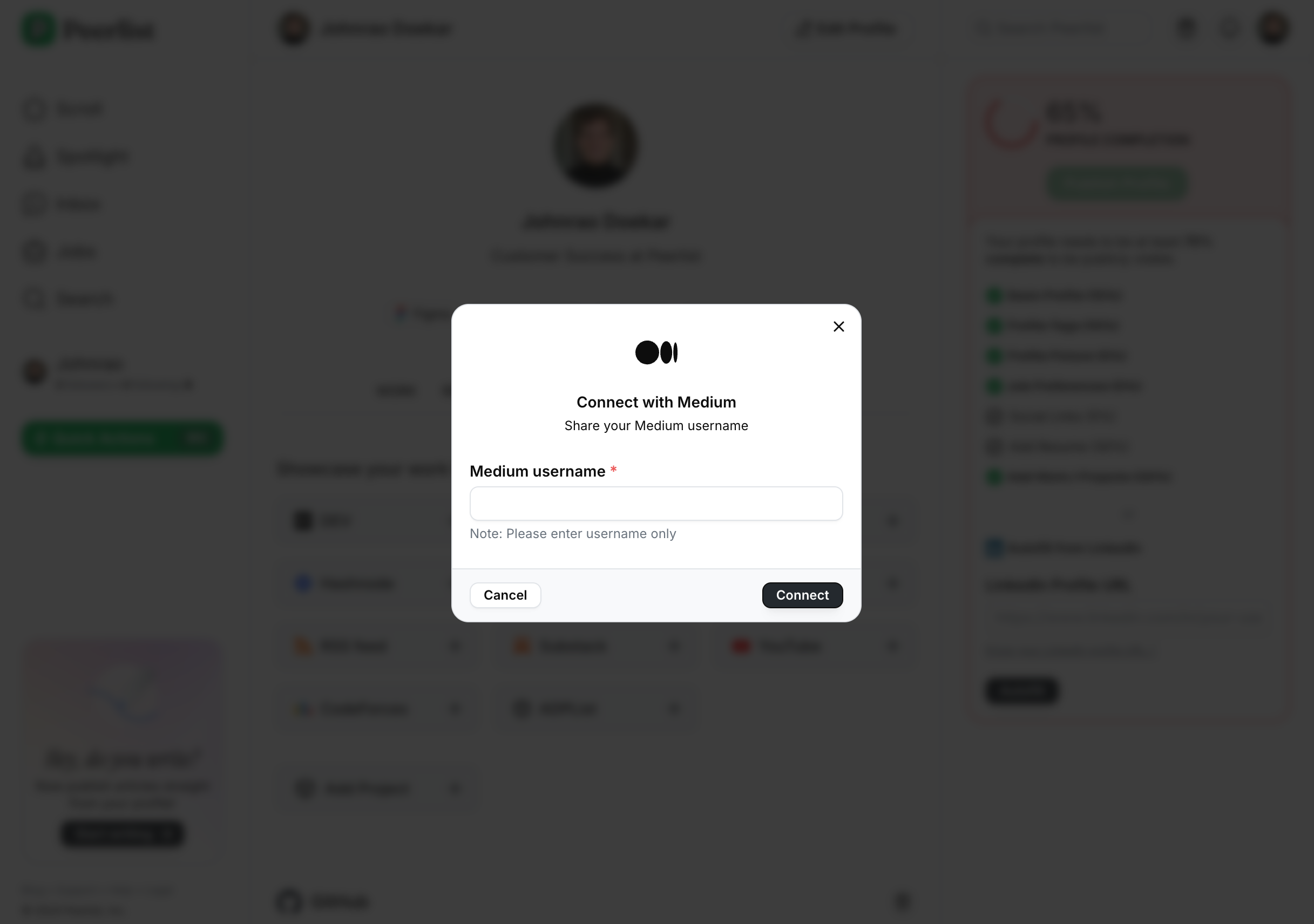
Click on Medium button and enter your Medium username (medium.com/@username) and click on Connect.
## GitHub
Click on the GitHub button and authenticate with your GitHub credentials to start showing your repositories and contribution graph on your Peerlist profile.
## Dribbble
Click on the Dribbble button and authenticate with your Dribbble credentials to start showing your latest design shots on your Peerlist profile.
## Product Hunt
Click on the Product Hunt button and authenticate with your Product Hunt credentials to start showing your latest products launched on your Peerlist profile.
## Gumroad
Click on the Gumroad button and authenticate with your Gumroad credentials to start showing your latest digital products on your Peerlist profile.
## Medium
Click on Medium button and enter your Medium username (medium.com/@username) and click on Connect.
 ## Substack
Click on Substack button and enter your Substack username (substack.com/@username) and click on Connect.
## Dev.to
Click on Dev.to button and enter your Dev.to username (dev.to/username) and click on Connect.
## RSS
Click on RSS button and enter your RSS feed URL and click on Connect. Here’s a detailed article on how to find RSS URL for any website — [https://zapier.com/blog/how-to-find-rss-feed-url/](https://zapier.com/blog/how-to-find-rss-feed-url/)
## YouTube
You can showcase videos from your YouTube channel or any playlist on your Peerlist profile. Click YouTube button and enter channel or playlist URL and then click on connect.
## ADPList
ADPList mentors can showcase their stats from ADPList to their peerlist profile. Just enter your ADPList profile URL and click on Connect. We will start showing your mentoring stats on your Peerlist profile.
***
## FAQs for Integrations
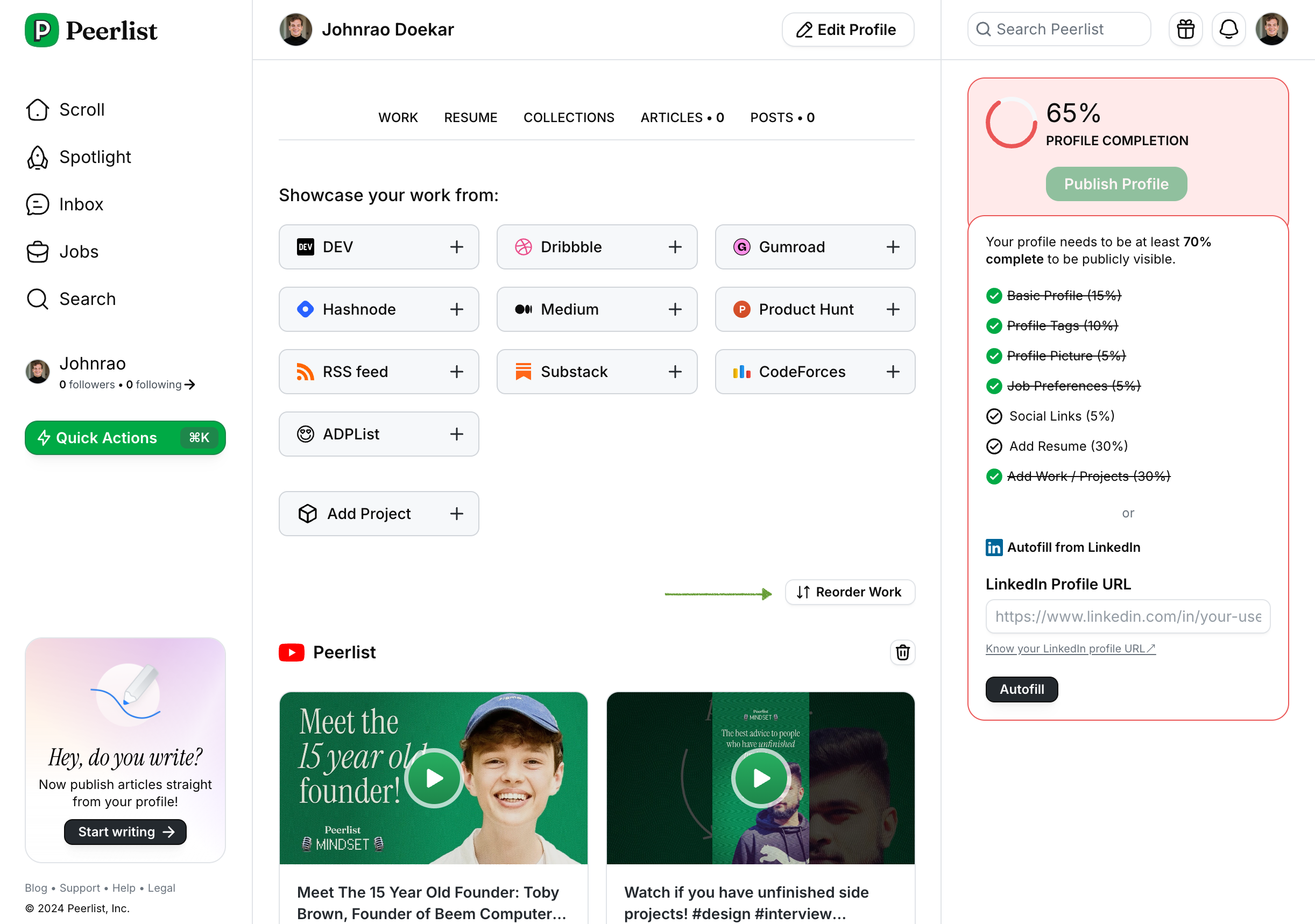
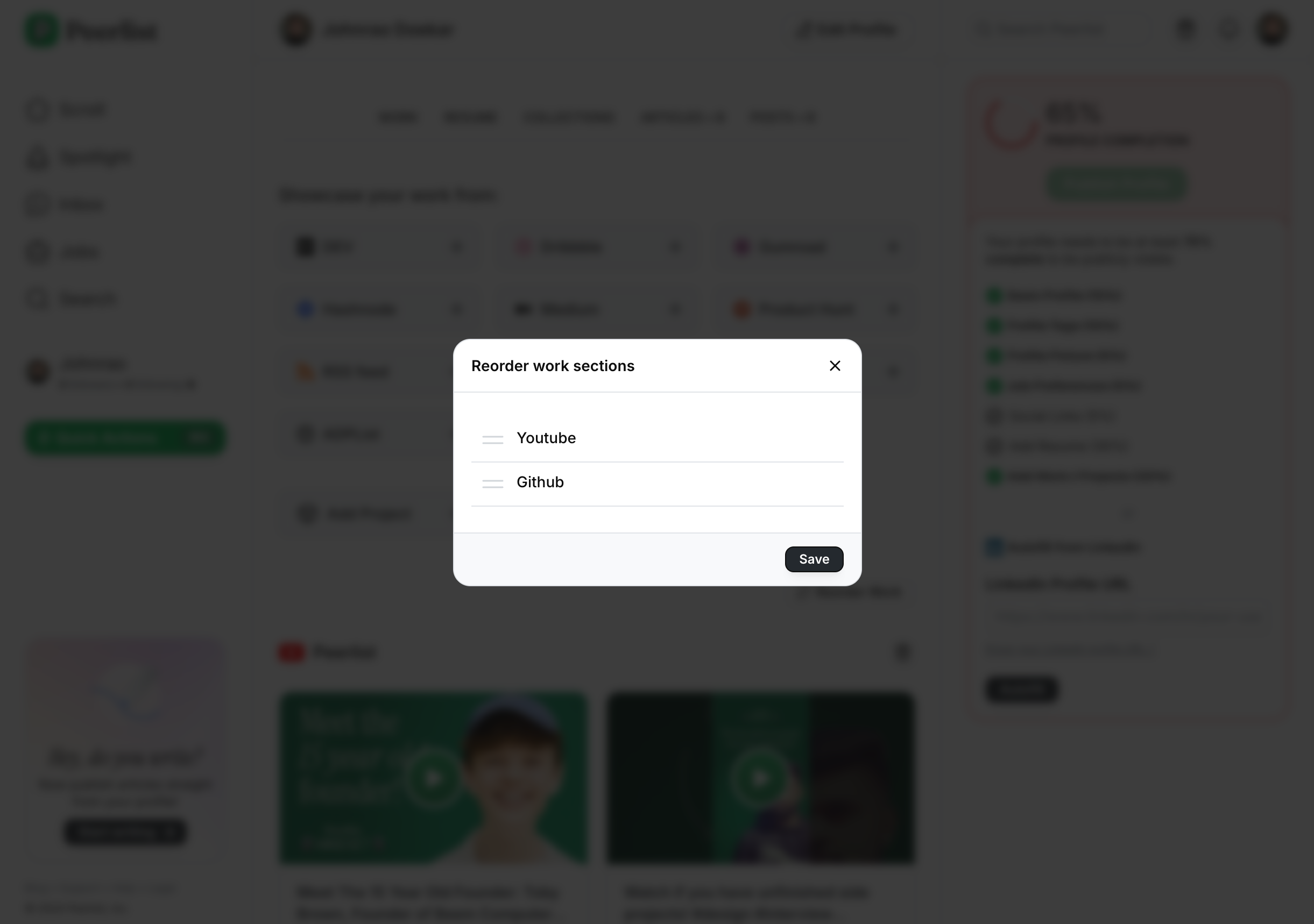
Yes you can! After adding these section on Work tab, you can reorder them by your preference.
## Substack
Click on Substack button and enter your Substack username (substack.com/@username) and click on Connect.
## Dev.to
Click on Dev.to button and enter your Dev.to username (dev.to/username) and click on Connect.
## RSS
Click on RSS button and enter your RSS feed URL and click on Connect. Here’s a detailed article on how to find RSS URL for any website — [https://zapier.com/blog/how-to-find-rss-feed-url/](https://zapier.com/blog/how-to-find-rss-feed-url/)
## YouTube
You can showcase videos from your YouTube channel or any playlist on your Peerlist profile. Click YouTube button and enter channel or playlist URL and then click on connect.
## ADPList
ADPList mentors can showcase their stats from ADPList to their peerlist profile. Just enter your ADPList profile URL and click on Connect. We will start showing your mentoring stats on your Peerlist profile.
***
## FAQs for Integrations
Yes you can! After adding these section on Work tab, you can reorder them by your preference.
 Data on your Peerlist profile takes at least 24 to 72 hours to be updated after there’s a new data on your source profile. Integrations are not synced in real-time.
This is applicable to all integrations.
Data on your Peerlist profile takes at least 24 to 72 hours to be updated after there’s a new data on your source profile. Integrations are not synced in real-time.
This is applicable to all integrations.